
Settings
Tap mirepoix in the navigation bar, then choose Kitchen Settings.
Settings holds the configuration for the kitchen you’re viewing. Your own name, email, passkeys, and sign-ins live on the Account page instead — tap mirepoix, then your initials at the top right of the menu.
Changes save as you make them — there’s no Save button. Toggles save the moment you flip them. Text fields save shortly after you stop typing, and right away if you click away mid-edit. A small spinner beside the field shows while a change is saving, then Saved ✓ confirms it and fades away after a moment.
Site, Recipes, Cooking preferences, Dates and times, Visibility, Agent access (beta), and Handle are owner-only. Members who aren’t owners see Settings without those sections.
Site
Site title — the browser tab title and the app’s name across pages. When your kitchen is published, people who aren’t signed in see it in the navigation bar, where members see Recipes. If the site title is empty or still reads mirepoix, they see the kitchen’s name instead. A long name is shortened there.
The same fallback applies to the mirepoix menu’s kitchen header, the Atom feed’s title, and the title of a printed recipe: an empty or still-default site title shows the kitchen’s name in each. The browser tab title itself doesn’t fall back this way — it reads mirepoix until you set a site title.
Recipes
Display nutrition information under recipes — when on, recipes with enough catalog data show a nutrition panel below the recipe. See Nutrition for details.
Draw a sketch of each recipe for its card — on unless you turn it off. When on, Mirepoix draws a small sketch of the dish for a recipe’s card on the Recipes page and category pages, shortly after the recipe is saved in the editor, where Mirabel’s drafts are saved too. Once a day it also draws any recipe still missing one, such as a recipe you imported. A recipe needs enough to draw, so a one-line stub gets none. To draw one, it sends part of the recipe’s text to OpenAI — Data and privacy says what goes and what’s kept. Turning it off stops new sketches and hides the ones on cards, though a sketch already being drawn may still finish. Sketches already made are kept, so turning it back on shows them again. While the kitchen is read-only because its plan has lapsed, nothing new is sent for sketches even with this on, and you can still turn it off, but turning it on waits until the plan is active again.
Ingredient lines — choose how ingredient lines read on recipe pages: Name first — “Sugar, 1 cup” or Amount first — “1 cup Sugar”. New kitchens start on Name first. The choice changes how lines appear on the recipe page, on-screen and in print, and which box comes first in each ingredient row of the recipe editor. The recipe’s own text, anything you export, and your kitchen’s feed always keep the name-first form.
Cooking preferences
What your kitchen cooks for and around. Mirabel uses these when she suggests or drafts — they never limit search. Three controls:
Usually cooking for — how many people you normally cook for, a number from 1 to 99. Leave it empty if you’d rather not say.
Diets — checkboxes for the diets your kitchen follows: vegetarian, vegan, pescatarian, gluten-free, dairy-free, kosher, and halal. That’s the whole list — you can’t add your own. Check as many as apply.
Avoid — ingredients this kitchen skips. Type one in the box and tap Add, or press Enter. As you type, matching ingredient names from the shared catalog are offered as you go, so a chip can use the same name your recipes do. Remove a chip with its ×. You can keep up to 20, each up to 40 characters.
These preferences go to Mirabel and nowhere else. They shape what she suggests and drafts — nothing here filters, hides, or reorders recipes anywhere in Mirepoix. Every recipe in your kitchen stays findable, including recipes that use an ingredient you’ve listed. Mirepoix has no allergy setting and doesn’t screen recipes for allergens, so read a recipe’s ingredients yourself when it matters to someone’s health.
Dates and times
The clock and calendar your kitchen keeps. Five controls, and they hold for every member wherever that member happens to be.
Time zone — start typing a region or a city and pick from the list. The entries are region/city names like Europe/Berlin, plus plain UTC, each shown with the abbreviation and offset it’s on right now. Daylight saving comes with the zone, so there’s nothing to change twice a year — and a place that doesn’t observe it has a name of its own, America/Phoenix for Arizona. This box saves when you pick from the list or leave the box, not while you’re typing.
A line above the box tells you where you stand. Before you’ve saved a zone it reads Not set — using your browser’s zone (Europe/Berlin)., or Not set — using UTC until you pick one. if your browser doesn’t say; when that zone is one Mirepoix offers, a Use this button beside it saves it in one tap. Once a zone is saved, the line reads Matches your browser., Your browser reports Europe/Berlin., or Your browser doesn’t report a zone. when it can’t say — and Use this appears again whenever your browser’s zone later differs from the saved one, not only before you’ve saved anything.
Week starts on — Monday, Sunday, or Saturday. That’s the whole list.
Date order — the two choices are the date itself, so you pick the shape rather than a name for it: 9 September or September 9.
Clock — 14:05 or 2:05 PM.
Show week numbers — when checked, a date that names a week carries that week’s number: Week 37 · 7 September. Week numbers follow the ISO standard, whose weeks start on Monday, so the box is greyed out — with that sentence as its hint — whenever your week starts on another day. Picking Sunday or Saturday clears the box.
A new kitchen starts with the zone, the week start, the date order and the clock its creator’s browser reported, so most kitchens never need to open this. Week numbers start off; no browser reports a preference for those. A kitchen made before these settings existed reads each member’s own browser for the zone until an owner saves one here, starts its week on Monday, and shows month-first dates on a 12-hour clock. That per-browser fallback covers pages only — Mirabel’s answers and the kitchen’s own background housekeeping read UTC until a zone is saved here.
What follows the zone and the week start: the printed menu’s “Week of” line names the first day of your kitchen’s week, in your kitchen’s zone (Printing); a Pantry item comes due on your kitchen’s day; Mirabel answers questions about what’s due on that same day; and a bought item re-arms on Groceries by it too.
What follows the date order, the clock and the week numbers: the dates on a recipe’s history and on the strip you see while reading an old version; the “deleted” line under a removed recipe on the Recipes page; the printed menu’s dateline and the printed grocery list’s date; the day a Pantry row says it will ask again (“asking 23 Sep” or “asking Sep 23”), and the date beside each longer length in its ⋮ menu (“23/9” or “9/23”); the date Mirabel names when the month’s AI budget runs out — always the first of the coming month, so “She’s back 1 October” or “She’s back October 1”; and the kitchen’s own notification emails — the one telling you a member was removed, and the one telling you the kitchen was deleted — where a time also carries your zone’s abbreviation. In the recipe editor, the banner offering back a draft reads in your kitchen’s clock and zone (“Resumed your edits from today at 14:05”); the Saved · line stays a plain age, like “4 minutes ago”.
Your Account page is the exception, because it belongs to no kitchen. The dates beside your passkeys and sign-ins, and the emails about your account — a new sign-in, an email change, a passkey added or removed — use your browser’s zone with month-first dates and a 12-hour clock, whatever any kitchen’s settings say.
Visibility
Publish recipes — when checked, your recipes are publicly accessible and may be indexed by search engines. When unchecked, only signed-in members can view the kitchen. Anyone else who opens one of its pages gets a Not Found page, with a link to sign in if they’re signed out.
People viewing a published kitchen without signing in see its site title in the navigation bar, and Sign in comes first among the buttons on the right. They don’t see Mirabel — her button is for members of that kitchen only, and the same is true of anyone signed in to a different kitchen.
Publishing also makes the kitchen’s Atom feed at /feed publicly
accessible. (Members can still subscribe even when the kitchen is
unpublished.) Feed readers pointed at any kitchen URL will
auto-discover it, so subscribers see new and updated recipes as you
add them.
Agent access (beta)
Owner-only. Let members connect apps and tools — when checked, every member can create tokens on their Account page that let an app or tool, such as a command-line tool, use this kitchen as them. It’s unchecked until an owner checks it. The Mirepoix iPhone app, once it’s out, connects whether this is checked or not. See Agent access (beta) for what a token can do and how members create one.
Unchecking it asks first. The question says how many other apps and tools are connected — “This disconnects 2 apps and tools and deletes their tokens” — or that none are right now, and that the Mirepoix iPhone app isn’t affected. Turning it off deletes every token under Other apps and tools, and turning it back on restores none of them. The iPhone app’s tokens stay, and the app stays connected.
Below the checkbox, once members have tokens, the list shows every member’s tokens for this kitchen in two groups, each headed with how many it holds: Other apps and tools, then iPhone app. A group with no tokens isn’t shown. Each row shows the token’s name, its member, whether it’s the iPhone app’s or a command line or script’s, its access, when it was last used, and when it was created. Tap Revoke and confirm to cut one off right away; the member isn’t emailed about the revoke. A token suspended for going over its limits says so on its row, and its button reads Dismiss instead.
The iPhone app’s token comes back, though. Once the app is out, it gets a new token the next time its member opens it while signed in. To cut off a member’s iPhone for good, remove the member from the kitchen, which deletes all their tokens for it, the iPhone app’s included.
While the kitchen is read-only because its plan has lapsed, you can still turn agent access off and revoke single tokens, but turning it on waits until the plan is active again.
Data
Export All Data — downloads a ZIP of your recipes, photos, catalog, and kitchen settings. Available to every member. See Export for what the archive holds.
Importing recipes
Shows only when the deployment has an Anthropic API key configured, so Mirabel is available.
An Import to mirepoix button you drag to your browser’s bookmarks bar. Use it on recipe pages Mirepoix can’t open itself — anything behind a login or paywall.
If your bookmarks bar is tight on space, check Compact button label (for narrow bookmark bars) beneath the button before you drag. The button’s text becomes ↓mp, so the bookmark you drag takes that short name instead. Only the name changes — the bookmark saves recipes exactly the same way. And it’s a choice you make at drag time, not a saved preference. The box starts unchecked every time the page loads, and dragging again with it unchecked gives you a bookmark named Import to mirepoix again.
To install it, drag the button up to your bookmarks bar. Then, on a recipe page, click the saved bookmark. It saves the page to mirepoix quietly, in the background — a small confirmation appears in the corner with an Open link, and you don’t need to switch tabs right away.
The recipe waits for you under Pending Imports, a button of its own at the top of your recipes list. Tap the entry when you’re ready, and Mirabel opens with a confirm card naming the page it came from — Import a recipe from example.com? Tap Import to build a draft, or Dismiss to cancel — nothing is imported until you tap Import. A recipe you neither import nor dismiss clears itself after 30 days. Saving the same page content again within 10 minutes, while it’s still waiting, keeps the one entry; if the page has changed, it saves a new one. A page an app or tool saves with your agent token waits in the same place, beside the bookmarklet’s, and clears itself after 30 days the same way.
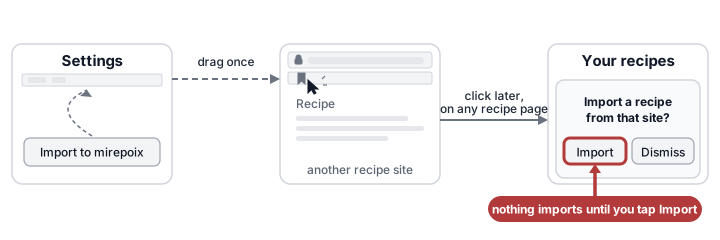
Scroll horizontally to see the full flow. In Settings, drag Import to mirepoix to your bookmarks bar once. On a recipe page, click it to save the capture quietly. Open it from the confirmation or Pending Imports later; Mirabel asks before importing anything.
Some sites block the background save. There, clicking the bookmark opens Mirabel right away with the recipe it read, the way the bookmarklet has always worked — confirm the import the same way, with Import or Dismiss.
If you think your bookmarklet button has been shared or copied somewhere you didn’t intend, tap Reset bookmarklet below the button. It stops any copy you’ve already dragged from saving in the background — those fall back to opening Mirabel directly, the same as a blocked site — until you drag the fresh one it gives you.
On a phone there’s a way in that needs no bookmark at all — share a page to Mirepoix from the system Share sheet.
Members
The Members subsection shows everyone in the kitchen, with role badges (owner / member). Owners see controls to invite new members, revoke pending invitations, and promote/demote roles. See Inviting members for the full workflow.
This device
Holds Log in on another device — opens a dialog with a short-lived QR code you can scan from a phone or tablet to sign in without typing. Close the dialog with its ×, the Escape key, the Back button, or by clicking outside it. The code expires in 5 minutes.
Handle
Owner-only. Your kitchen’s web address — the /@your-handle part of
every link to it.
Type a new handle and tap Change handle. Old links keep redirecting to the new address, and an import bookmarklet made before the change keeps saving pages to your kitchen’s pending imports. The handle you leave behind stays reserved to your kitchen — no one else can take it, and you can switch back to it later if you want. You can change your handle once every 30 days.
API keys
Mirepoix takes four API keys. The Anthropic key turns on the abilities that need AI — Mirabel’s chat answers, importing a recipe from a photo, and browser captures like the Import to mirepoix bookmarklet above. The rest of the app works without it, including the Add Recipe sheet’s reading of a link, pasted text or a file, Mirabel’s guided add-a-recipe interview, and USDA nutrition search.
The Mistral key reads the text on a photo you import. Photo import needs it and the Anthropic key both. With the Anthropic key alone, From a photo still shows, but a photo can’t be read — nothing else changes.
The OpenAI key powers one thing: Draw a sketch of each recipe for its card, above. Without it, the setting still shows and stays on, but no sketches get drawn — nothing else changes.
The Typesafe key powers Mirepoix’s ingredient checks, the aisle it suggests for a new shopping-list item, the category it suggests for an imported recipe, and the sorting of lines read from a photo. Without it, Mirepoix reads and matches on its own rules instead — nothing else changes.
The keys are deployment-level configuration. None is stored in the database, and none can be changed here.
- Hosted installs: the operator sets the keys, so the abilities that need them are already on.
- Homelab installs: set
ANTHROPIC_API_KEY,MISTRAL_API_KEY,OPENAI_API_KEYandTYPESAFE_API_KEYin yourdocker-compose.ymlenvironment section or.envfile. See.env.exampleanddocker-compose.example.ymlfor the other variables you can set.
Each key applies to every kitchen on the deployment.
Danger zone
The Danger zone groups the kitchen-level actions kept apart from everyday settings:
- Leave $kitchen — leave the kitchen you’re currently viewing. See Leaving a kitchen.
- Delete $kitchen — owners only; permanently removes the kitchen and all its content. See Deleting a kitchen.
Deleting your account and signing out of other devices moved to the Account page.
To sign out, tap mirepoix in the navigation bar and choose Sign out. See Signing in for how it works.
See also
- Creating a kitchen — the kitchen name you can change from Settings
- Import a recipe with AI — the fuller walkthrough behind the bookmarklet above
- Passkeys — a faster way to sign in on a new device than the QR code here
- Agent access (beta) — tokens that connect members’ apps and tools to the kitchen
Last updated October 14, 2026